> ## Documentation Index
> Fetch the complete documentation index at: https://docs.bleed.bot/llms.txt
> Use this file to discover all available pages before exploring further.
# Permissions
> How to solve channel permission issues.
## Text Channel Permissions
Usually, if members are still able to send messages in a text channel after being muted, it is likely because of the `@everyone` channel permissions being set incorrectly.
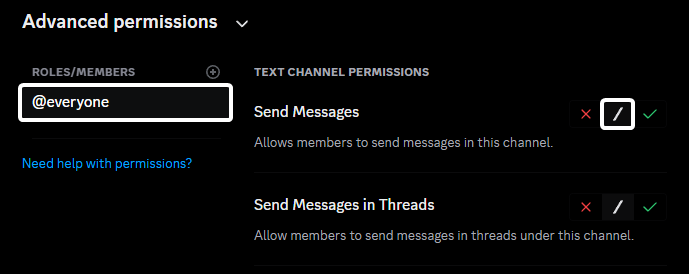
Go to your channel settings, and navigate to the **Permissions** tab.
Find the `@everyone` or **member** role and ensure that the **Send Messages** permission is set to **Neutral** (`/`).
 Go to your server settings, and navigate to the **Roles** tab.
Find the `@everyone` or **member** role and ensure that the **Send Messages** permission isn't enabled.
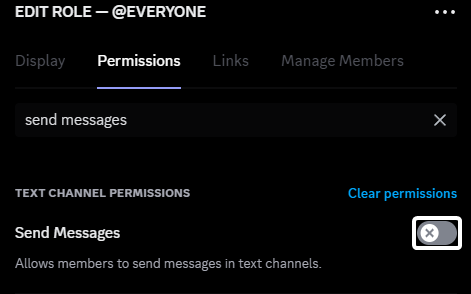
Go to your server settings, and navigate to the **Roles** tab.
Find the `@everyone` or **member** role and ensure that the **Send Messages** permission isn't enabled.
 Check if there are any roles that have permission overrides for the channel in question. If a role has the **Send Messages** permission enabled, it will override the `@everyone` permissions and allow members to send messages.
### Lockdown Command
If you have a custom member role instead of the default `@everyone` role, make sure that the lockdown command is set to restrict that role instead of the `@everyone` role.
The steps above are also required for the lockdown command to work properly.
```javascript Syntax theme={null}
,lockdown role (role)
```
```javascript Example theme={null}
,lockdown role @Member
```
## Voice Channel Permissions
If your VoiceMaster channels aren't working as expected due to permission issues, you can use the **category** to manage permissions for all channels within it.
Check if there are any roles that have permission overrides for the channel in question. If a role has the **Send Messages** permission enabled, it will override the `@everyone` permissions and allow members to send messages.
### Lockdown Command
If you have a custom member role instead of the default `@everyone` role, make sure that the lockdown command is set to restrict that role instead of the `@everyone` role.
The steps above are also required for the lockdown command to work properly.
```javascript Syntax theme={null}
,lockdown role (role)
```
```javascript Example theme={null}
,lockdown role @Member
```
## Voice Channel Permissions
If your VoiceMaster channels aren't working as expected due to permission issues, you can use the **category** to manage permissions for all channels within it.