> ## Documentation Index
> Fetch the complete documentation index at: https://docs.bleed.bot/llms.txt
> Use this file to discover all available pages before exploring further.
# Webhook
> Relay messages through a webhook with a custom username and avatar.
## What is a webhook?
A webhook is a way to post a message with a custom username and avatar to a channel.
Webhooks support [embeds](/resources/scripting) with dynamic
[variables](/resources/scripting/variables).
## Creating a webhook
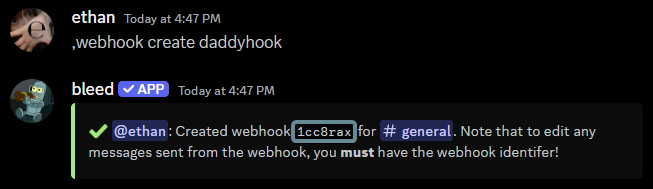
You can use the `webhook create` command to create a webhook.
The webhook identifier is important for referencing the webhook in other commands.
```javascript Syntax theme={null}
,webhook create (name)
```
```javascript Example theme={null}
,webhook create daddyhook
```
 ### Customizing the webhook
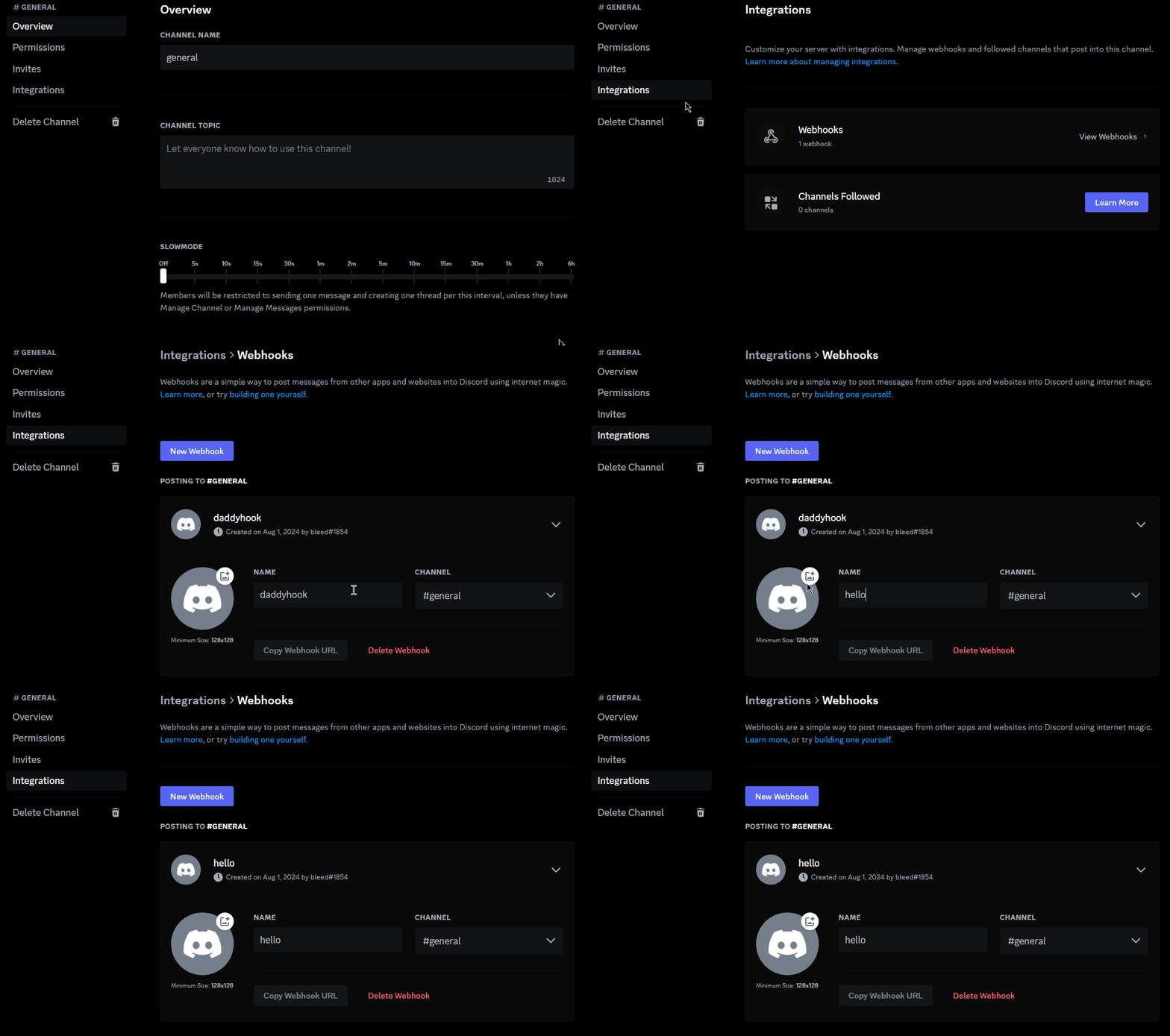
If you want to change the webhook's username or avatar, you can open the **Webhooks** tab in the channel's integrations settings.
### Customizing the webhook
If you want to change the webhook's username or avatar, you can open the **Webhooks** tab in the channel's integrations settings.
 ## Sending a message
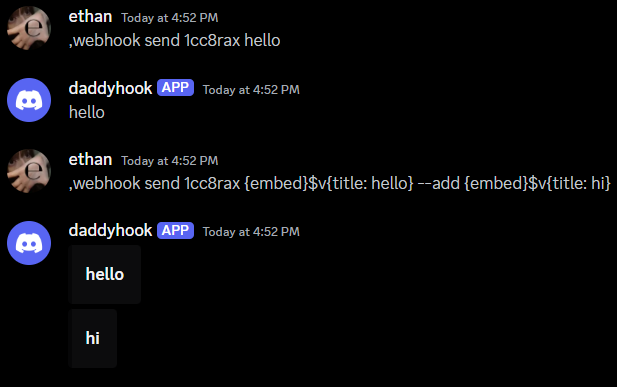
After creating a webhook, you can use the `webhook send` command to send a message.
If you've forgotten the identifier, you can use the `webhook list` command to
view all webhooks.
You can use the `--add` flag to add another embed to the message.
```javascript Syntax theme={null}
,webhook send (identifier) (message) [--add (embed code)]
```
```javascript Example theme={null}
,webhook send 1cc8rax hello
,webhook send 1cc8rax {embed}$v{title: hello} --add {embed}$v{title: hi}
```
## Sending a message
After creating a webhook, you can use the `webhook send` command to send a message.
If you've forgotten the identifier, you can use the `webhook list` command to
view all webhooks.
You can use the `--add` flag to add another embed to the message.
```javascript Syntax theme={null}
,webhook send (identifier) (message) [--add (embed code)]
```
```javascript Example theme={null}
,webhook send 1cc8rax hello
,webhook send 1cc8rax {embed}$v{title: hello} --add {embed}$v{title: hi}
```
 ### Editing the message
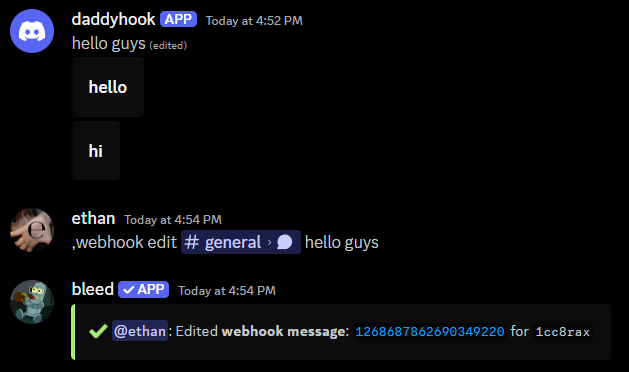
You can use the `webhook edit` command to edit a message sent by a webhook.
```javascript Syntax theme={null}
,webhook edit (message link) (new message)
```
```javascript Example theme={null}
,webhook edit discord.com/.../ hello world
```
### Editing the message
You can use the `webhook edit` command to edit a message sent by a webhook.
```javascript Syntax theme={null}
,webhook edit (message link) (new message)
```
```javascript Example theme={null}
,webhook edit discord.com/.../ hello world
```
 ## Related commands
You can use the `webhook delete` command to delete a webhook.
```javascript Syntax theme={null}
,webhook delete (identifier)
```
```javascript Example theme={null}
,webhook delete 1cc8rax
```
You can use the `webhook list` command to view all webhooks.
## Related commands
You can use the `webhook delete` command to delete a webhook.
```javascript Syntax theme={null}
,webhook delete (identifier)
```
```javascript Example theme={null}
,webhook delete 1cc8rax
```
You can use the `webhook list` command to view all webhooks.